PDFmdx Version 3.19.0

Innovations / improvements PDFmdx version 3.19.0:

  • Improved barcode performance through preprocessing: There is now a new option to speed up barcode recognition and processing. The previous barcode processing is still available because there may be use cases where the previous processing offers an advantage. Both implementations have their advantages depending on the situation. Barcode recognition requires an image and not a normal PDF structure with text and lines. The PDF must therefore be rendered beforehand for barcode recognition.

In the previous implementation, only the area marked by the field is rendered. Since this doesn’t take very long and in order to achieve a better result even with bad scans, the rendering is carried out three times – with 200, 300, and 400dpi. Advantage: If barcode recognition is only to take place in a single small area, not everything has to be rendered or if scans are processed with inferior quality.

With the new “Barcode preprocessing” function, the entire PDF is rendered in advance with 300dpi, all barcode types defined in the template are recognized and used later cached. This works faster because the redering or barcode recognition is simply carried out with 300dpi and the recognized values ??are saved for further processing. Advantage: If there are several areas with barcodes on a page or if the document is of good quality and multiple rendering is not required.

  • Process protected PDF – Open password: Previously, password protected PDF could not be processed. Now there is a function to store the “Open PDF” password in the layout. All passwords stored for the job for the selected layouts are loaded for processing. If PDFmdx recognizes a protected PDF file, the password list tries to open and decrypt the PDF one after the other. If a password matches, the PDF is opened and decrypted. A new, unprotected PDF is then created from it and processed normally via PDFmdx.

Download – PDFmdx Template Editor & Processor >>>

PDFCompressor – PDF-MRC (Mixed Raster Content) Compression – Reduce document color scans by a factor of 8 to 10

Document scanners and multifunction devices for capturing, archiving and forwarding of documents can be found in almost every company today. All modern devices are able to generate documents in color and as PDF. Color document capture and processing is becoming more common and popular. The disadvantage: The file of a color scan with the usual JPEG compression for color is many times larger than a comparable black and white scan. JPEG compression is good for color images/photos, but JPEG compression is very poor for text due to the artifacts created by the compression. Text needs sharp edges to be legible. With JPEG compression, these edges become blurred, making smaller fonts in particular illegible.

The PDF-MRC (Mixed Raster Content) compression solves the problem – it creates very small PDF files from color scans and enables texts to be read easily.

MRC compression is also known as “Hyper Compression” and uses the method of image segmentation. It is very efficient and well applicable for typical business documents consisting of text and images that are scanned in color.


The PDF-MRC compression in brief:

The essential point is that with PDF-MRC compression, page areas of the scan are divided into separate images – so-called “layers“. Each of these layers is adjusted accordingly and optimally compressed. The PDF format makes it possible to display the original representation of a page from these separate levels as an overall picture. See also Wikipedia >>>

The 4 levels of PDF-MRC compression:

  • Background layer (color image) – contains the background, background “smudges” and all other graphic elements which cannot be identified as text, line graphic or image.
  • Image layer (set of color images) – contains all color images of the page.
  • Mask layer (black and white image) – contains the text and line art.
  • Foreground Layers (Picture Palette) – contains the information about the colors of the masking layer, thereby saving the color of the text and line graphics.

PDFCompressor with PDF-MRC compression:

The current PDFCompressor component used in PDFCompressor-CL, -FM and -CS-Service, as well as in our other applications (e.g. AutoOCR, FileConverterPro…), now also supports PDF-MRC compression. PDF-MRC compression is applicable for color documents/scans, but not for black and white and grayscale scans.

Supported file formats: PDF, JPEG, PNG, BMP, TIFF, JPEG2000, JBIG2, ICO, PCX, GIF, WMF, EMF – for file format with multiple pages, a multi-page PDF is automatically generated.

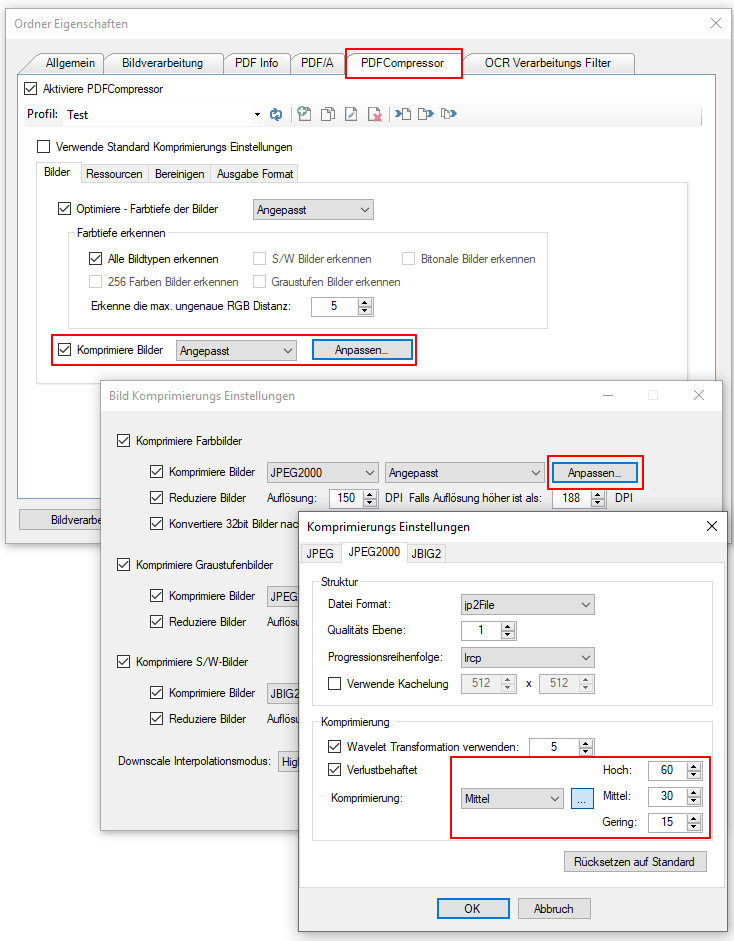
Predefined PDF-MRC profiles: PDF documents are “rendered” before MRC compression with the set resolution (150, 200, 300dpi), i.e. in converted to a color image and then subjected to MRC compression. To make it easier for the user, the essential MRC compression settings can already be selected as pre-defined profiles. “MRC – text only” or “MRC – text and images” for 150 or 200dpi resolution.


Example – PDF-MRC compression:


PDF-MRC Application:

PDF-MRC compression is specifically designed for compressing document color scans and allows file size reduction by a factor of 8 or 10 compared to traditional JPEG compression. “Normal ” PDFs that only consist of lines and text can also be MRC compressed, but it should be noted that the PDF is rendered before MRC compression, i.e. it is converted into an image file in order to then be output as MRC PDF. The text previously contained in the PDF is reinserted into the MRC PDF. Normally it only makes sense to subject scanned color files or PDF files that have been OCR processed to MRC compression.

The text display in an MRC-PDF file is clearly legible and without artefacts, even with small fonts, despite a low resolution of 150-200dpi. The PDF-MRC compression is therefore the ideal solution for archiving color documents generated in the company, whereby the file size is not significantly larger than that of black-and-white scans, the texts remain legible and the advantage of the color representation exists.

PDFCompressor Component Test & Example application >>>

FileConverterPro (FCpro) as an independent C# / .NET component

So far we have only used FileConverterPro (FCpro) as a Windows service with a REST/SOAP web service interface. Now we have also made it an independent C# / .NET component. This allows us to implement all document conversion functions available in FileConverterPro (FCpro) directly in other applications. Based on this, we will soon create the FCpro converter as an independent application with a command line and as a Windows service with directory monitoring (hotfolder). We will also integrate this converter component directly into PDFMerge / EasyMerge or in EMailArchiver and other applications.

This FCpro C# / .NET component is not offered by us as an independent product and is only used in our applications and in individual software projects. An example & test application is available for the FCpro converter component, with which all FCpro conversion functions can be tried out interactively.


Functions of the FCpro component test application:

  • Standalone test application to interactively test the FCpro PDF & to be able to test PDF/A conversion functions
  • Creates – PDF, PDF/A, text, image preview, thumbnail view from various file and container formats (ZIP, EML, MSG…)
  • FCpro convert profile functions: create, copy, edit, export/import profile
  • Configuration of the number of parallel processes for conversion
  • One or more files can be dragged & Drop area to be dragged. The resulting files (PDF, TXT, JPEG, PNG) are placed in the source file folder.

Download – FileConverterPro (FCpro) Component test application ~600MB >>>
Download – OmniPage OCR Engine as an option for FCpro (ca. 235MB) >>>

Sample project Calling the PDF2PDFA-CL command line application from .NET / C#

We have created a C# / .NET example project to show how the PDF2PDFA-CL command line application can be called from a .NET / C# program.

Functions:

  • PDF to PDF/A conversion using our PDF2PDFA-CL application< /a>
  • .NET / C# sample project in source code including executable application
  • Selection – Conversion profile file (*.ppa) from PDF2PDFA-CL
  • Selection – Output Folder
  • Selection – Path to PDF2PDFA-CL EXE
  • Start processing by drag & Drop one or more PDF files into the selected drop area.

Download – PDF2PDFA-CL_C# sample project >>>

FileConverterPro (FCpro) 1.0.118

New features of FCpro version 1.0.118:

  • Extensions for placeholder pages when processing container (ZIP, MSG, EML..) files – Previously, container files in which one of the contained files could not be converted or could not be processed further could not be processed , only be selected whether a placeholder page is inserted or not. The status of the job never showed an error and a PDF result file was always generated. In the job query, there was no additional information about whether individual parts were not converted or whether placeholder pages were inserted.

The FCpro conversion profile can now be configured:

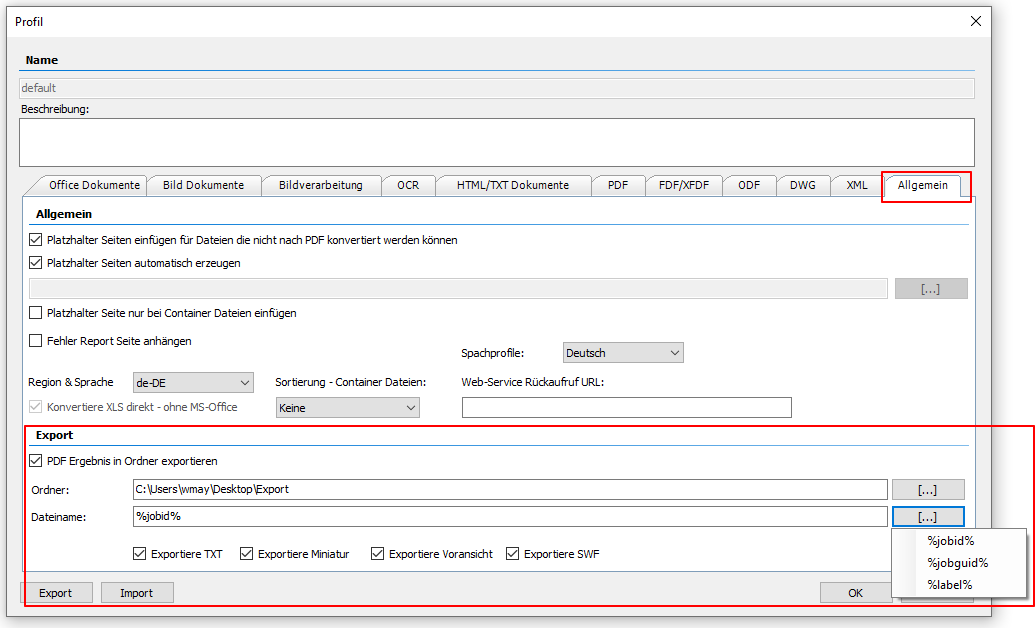
    • Whether to include placeholder pages or not.
    • Whether always a PDF result file (with or without placeholder pages), or whether no PDF should be generated. If a component of the container cannot be converted or processed, the job receives the status “Error”,
    • In addition to files that cannot be converted, PDF files that cannot be processed further are also recognized for containers. e.g. if they have a PDF restriction / password protection and therefore cannot be combined into one PDF file.
    • A separate placeholder page log can be activated on the server in which the use of placeholder pages is logged.
    • Every use of a placeholder page can also be logged via an SMTP email.
    • If a placeholder page was added to a job, you get this information via the web service job query.


  • Web Service – REST – Improvements / Enhancements:

REST endpoint UploadJobEx6 – Previously, some parameters were always overwritten by the FCpro service if they were not configured. This has now been changed so that only those parameters that are passed and set via the REST endpoint UploadJobEx6 overwrite the job parameters.

GetJob function(jobGuid) call provides more information:

There are some new lines in the job information

    • PlaceholderUsed (true/false)
    • ProcessId
    • ProcessName
    • SettingsName (name of the FCpro converter profile used)

ProcessName provides information about which converter was used to convert the PDF. Either “FileConverterPro” (internal) or by an “external” component (e.g. MS Office)

Sample response to a GetJob function(jobGuid) call:

{
“GetJobResult”: {
“ConversionStartedDate”: “/Date(1637056353767+0200)/”,
“ConversionStartedDateISO”: “2021-11-16T11:52:33+02:00”,
“CreationDate”: “/Date(1637056352797+0200)/”,
“CreationDateISO”: “2021-11-16T11:52:32+02:00”,
“Errors”: “”,
“FinishedDate”: “/Date(1637056366843+0200)/”,
“FinishedDateISO”: “2021-11-16T11:52:46+02:00”,
“JobGuid”: “84726eef-0383-4094-b15f-de7ce122dce7”,
“JobID”: 255,
“JobLabel”: “C:\\Users\\Admin\\AppData\\Local\\DropConverterProE\\Downloads\\211116-115230\\20211116115232058.pdf”,
“PageCount”: 1,
“PdfData”: null,
“PlaceholderUsed”: false,
“ProcessId”: -1,
“ProcessName”: “FileConverterPro”,
“SettingsName”: “default”,
“Status”: 5,
“UserName”: “admin”
}
}


  • Quit MS Office automatically – Sometimes it happens that the FCpro service is installed on a workstation on which a user is working. During FCPro processing, MS Office applications are “cleaned up” at regular intervals and automatically terminated. Previously also if MS Office was not configured and used as a converter. That has now changed. MS Office processes are only cleaned up if MS Office is also configured and used as a converter.
  • Common PDF2PDFA component – The FCpro PDF to PDF/A converter was developed by our PDF2PDFA standard component to use the same unified converter in all our applications. FCpro is now also able to create ZUGFeRD 2.1.1-compliant files with XRechnung profiles.
  • FCPro version number can be used as a variable for the creator / creator field to be able to store in the PDF with which FCpro version the document was created.
  • SWF – Flash file generation has been removed – Since the Flash SWF format is no longer supported in IT for security reasons, the generation of this additional file format has been removed from all FCpro functions.
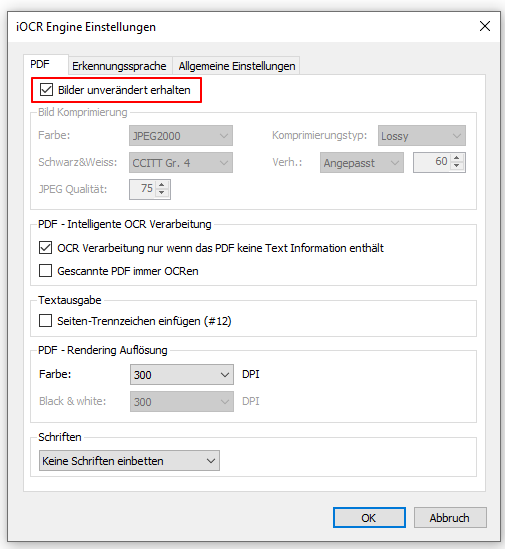
  • iOCR – Recognizing and correcting defective text in existing PDFs – For more information, see AutoOCR >>>
  • Terminating OCR processes that have been running for too long due to timeout – If the OCR process for a job takes too long and the specified timeout value is reached, the job and all associated sub-processes are aborted terminated automatically.

Corrections and bug fixes:

  • Access problems have arisen with the parallel processing of ZIP containers, with TIFF files and parallel processes. – Error “Can not access the file”
  • The PDF (password) protection was not executed for the PDFExport settings and PDFSign.
  • The container sorting (ZIP, MSG, EML…) by file name / folder did not work.
  • The configurable JPEG quality settings for the additional preview and thumbnail images to be generated were not applied.
  • Setup – When installing without an internet connection, the iOCR engine was not automatically installed.

Download – FileConverterPro (FCpro) ~600MB >>>
Download – OmniPage OCR Engine als Option für FCpro (ca. 235MB) >>>

PDFmdx Version 3.18.0

Innovations / improvements PDFmdx Version 3.18.0:

  • Improved text extraction – Thanks to the improved test extraction, we were able to improve the text extraction on the basis of problematic PDFs provided by customers. This also made certain “problematic” PDFs processable – e.g .: phantom spaces were inserted for very small text, the “.” or “,” output shifted, or horizontal dividing lines created by strung together “_” prevented reading in these lines.
  • Completed PDF forms Process – Forms are now “rendered”. The PDF is “flattened” and converted into a normal, no longer changeable PDF. Thus, the fields can be read out and processed by PDFmdx like with any other PDF.
  • New counter variables for the metadata output -% COUNTER_GLOBAL% – A “global” counter for which a start value can be specified. This is increased each time a data record is output. % COUNTER_LOCAL% – the “local” counter, is only incremented for the data records of the current processing and starts with each processing job again at 1.

  • Performance optimization when using the file name to select the layout directly via the name and not via conditions.
  • PDFmdx Editor – Split Test Function – is now based on the same routine as the real processing. Error messages are displayed directly and correspond to the error messages that are also output during processing.
  • PDFmdx Editor – Show fields / sliding groups on other pages – Usually fields are positioned on a specific page of the sample document. However, fields can also be read out on other or more pages, e.g. when reading out position data via sliding groups / subgroups. In order to be able to check how / where the fields are positioned on other pages, or which values ??are read out for “floating fields”, there is now a function to show the positioned fields on other pages. This display is automatically deactivated when you switch to another page. By & lt; CTRL & gt; + & lt; Up / Down Arrow & gt; the fields can also be moved vertically. Along with the & lt; Shift & gt; Key with larger increments. If you click in a displayed field, the field name and the text read out are displayed in the status line.

  • Configuration of the output name – If an illegal character is used in the field for the PDF output file name, e.g. uses a “\”, characters that are not allowed are automatically replaced by a “_” during processing.

  • ZUGFeRD XML via variables – The variables available via PDFmdx can be used to define the ZUGFeRD XML file to be embedded.

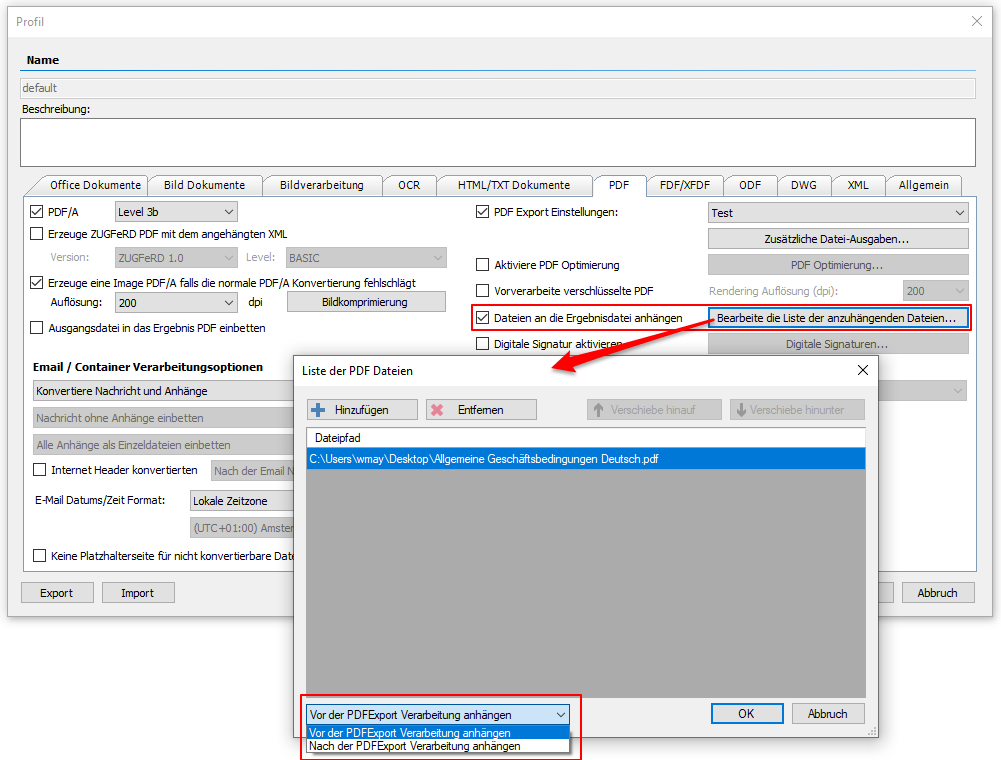
  • Combining PDF files – The new “Combine” function allows you to combine additional PDF files with the processed file to form a single PDF.

Combining functions:

    • “Combine” allows you to combine one or more PDFs with the file generated via PDFmdx to form a complete PDF.
    • The order of the files to be merged can be specified via a list.
    • Criteria (AND / OR / NOT) can be used to decide on the basis of texts read from the document whether or not a “merge” should take place.
    • Several different “merge lists” can be created. Such a list can be linked to a specific layout. A layout can be recognized and selected using criteria.
    • In the merge list, you can either use fixed files or paths / names that are dynamically generated during processing using texts read from the document.
  • New implementation of the email function:
    • A new email component has been implemented for sending and email processing.
    • This means that all current encryption protocols (SSL2, SSL3, TLS1, TLS1.1, TLS1.2) are supported. At the beginning of communication with the SMTP email server, the most suitable and supported protocol is automatically negotiated and determined.
    • Max. Configurable size of the email : When sending email, there is an option to combine all emails that are to be sent to the same email address into a single email message. There is now a separate parameter to limit the size of a single combined message, e.g .: to 10MB, If the value for a message is exceeded, it is divided into several emails so that the maximum set size is not exceeded.
    • The PDFmdx processor now has its own logging / protocol function for sending emails. This can be activated individually for the successfully sent as well as for the error mail. The storage path can also be configured.
    • The logged emails are saved as EML files in two configurable folders (Success / Failure). An XML file with metadata and error message is also created for an error email. A separate subfolder can be created for each day to store the successfully sent email.
    • Display of the sent / error email in the PDFmdx processor as a list, accessible via 2 buttons. Functions: sorting of the list by date / time, to, subject, error message, open folder, display email message, open file attachment. Delete individual messages, delete all messages.


Corrections PDFmdx version 3.18.0:

  • Read barcodes were not assigned to variables and therefore not written to the metadata file.
  • Text that has been read out was not prepared according to the configuration for variables in different places.
  • Barcodes could not be read in PDF with page rotation – the display page rotation was not taken into account.
  • “Received value” function did not receive the values ??for the sub-records.
  • MRC-PDF (Mixed Raster Content) could not be processed. A defective PDF was issued.
  • PDFmdx Service Processor – The start at a specified / repeated time did not work.
  • PDFmdx processor – During parallel processing, sometimes it was not possible to write to the metadata XLS (X) because it was still open and therefore blocked by another process.
  • PDFmdx Editor – import of templates – query after overwriting always came even if no file should be overwritten.
  • PDFmdx Editor – First start without template & amp; Layout, then import a template – no automatic refresh was performed and the imported templates & amp; Layouts were not visible.
  • PDFmdx Editor – When moving / copying a layout from one template to another, no query came up that a layout with the same name already existed.
  • PDFmdx Editor – Deleting a layout with multiple linked conditions. The AND / OR nodes were retained in the editor and were not automatically cleaned up, which caused processing problems.
  • PDFmdx Editor – Images in the HTML body were not inserted into the email when the email was merged to the same recipient and were missing in the sent message.
  • Sending emails – If an error occurred when sending emails under certain conditions, processing was aborted or the service was stopped. For this reason, the sending of emails has been re-implemented and logging of successful and error emails has been added. (see innovations).

Download – PDFmdx Template Editor & Processor >>>

PDF2Printer – Version 2.0.22 – Print pages / areas, extended PCF control file

Innovations PDF2Printer Version 2.0.22:

Print specific pages / ranges of pages:

  • Page ranges – from / to – with the minus sign: e.g. 6-8
  • Individual pages – separated by a comma: e.g. 1,4,6-8
  • All pages from a certain page to the end of the document – with the dollar sign: e.g. 1,4,6-8,10- $

Extended PCF control file:

An essential function of PDF2Printer is the possibility of controlling the printing process via a PCF- Print Control Format File. The PCF control file has now been expanded to include the new functions of the PDFPrint .NET component.

PDF2Printer can monitor an input folder. PDF files that end up in it are printed out immediately with the configured standard settings. Any subfolders can be created in the monitored folder into which PDF files are copied. The printout of these PDF files can only be triggered via a * .PCF file.

A PCF file can contain the names of one or more PDF files to be printed. The PDF to be printed must already exist in the subfolder before the PCF file is created there or copied into it. The PCF file can contain one or more lines, one line per PDF. Printed PDF files will be deleted. Once all files have been printed and the subfolder is empty, the subfolder and the PCF file are also automatically deleted.


Syntax of the PCF lines:

<PDF file name> \ t <Printer name> \ t <Paper tray type>: <Paper tray name> \ t <Copies> \ t <Grayscale> \ t <Page range>

  • \ t = TAB Character as a separator between the parameters.
  • & lt; PDF file name & gt; = Name of the PDF file to be printed, without path, the PDF must be in the same subfolder as the PCF file.
  • & lt; Printer Name & gt; and & lt; Tray_Type & gt;: & lt; Tray_Name & gt; = Can be found in the “printers.pnames” file. This file is automatically created by the PDF2Printer application when the service is started in the monitored folder and contains the list of all available printers / paper feed trays. Please note that the system account under which a Windows service runs by default does not have access to network printers. Therefore a user account should be used. You should log in with this user account, perform the PDF2Printer configuration and test the printer under this user account. This user should then also be used for the PDF2Printer service. This ensures that the PDF2Printer service has the same printers available as when configuring via the user interface.
  • & lt; Copies & gt; = Number of copies for the printout
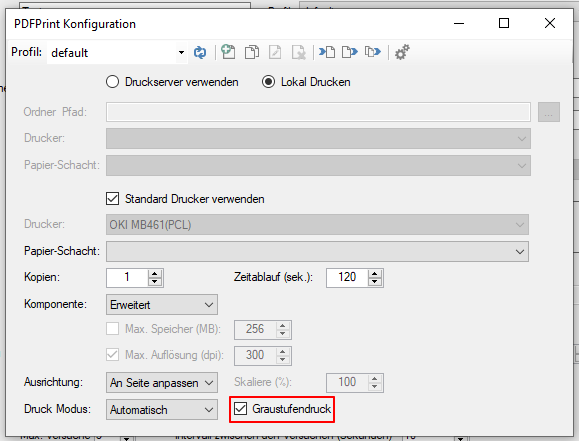
  • & lt; Grayscale & gt; = true / false – Whether to print in color or in grayscale.
  • & lt; Pages area & gt; = Individual pages separated by a comma, from / to with the minus sign, or up to the end of the file with the $ sign: e.g. 1,3-4,10 – $ </ li>

Download – PDF2Printer – Service to automatically print PDFs >>>

PDFPrint .NET Component version 1.3.6 – print certain pages / range of pages

With the PDFPrint .NET component version 1.3.6 it is now possible to print only certain pages (individual pages, page areas, all pages up to the end of the document) of the PDF document

Features:

  • Page ranges – from / to – with the minus sign: e.g. 6-8
  • Individual pages – separated by a comma: e.g. 1,4,6-8
  • All pages from a certain page to the end of the document – with the dollar sign: e.g. 1,4,6-8,10- $

Since all of our PDFPrint products – PDFPrint-CL, FM, CS, PDF2Printer, eDocPrintPro PDFPrint Plugin – are based on the PDFPrint .NET component, this new function is automatically available in all new versions of our PDFPrint products.

Download – PDFPrint –  print PDF´s >>>

AutoOCR & AutoOCR light Version 2.0.41

Innovations AutoOCR & AutoOCR light 2.0.41:

  • Target file name / folder via variables: Some variables can now be used for the output file name and for the output folder. The configuration takes place in the field for output file names. By using “\”, a folder structure can be specified in the field, which will be created under the selected output start folder.

  • Eliminating PDF that already contain text: The “intelligent” OCR processing can recognize whether a PDF requires OCR processing or not, but all PDFs from the monitored input folders are always processed and output in the target folder. However, if you only want to output PDFs that really require OCR processing, this distinction was not previously possible. With this new option, only those PDFs that have actually been OCR processed are output in the output folder. All other PDFs are, depending on the configuration, moved from the input folder, e.g .: directly to the archive folder and therefore do not end up in the output folder.

  • Detect and correct defective text in PDF: Sometimes PDF contains text, but it is “defective”. The problem lies in the incorrect creation of the PDF. Texts / fonts are coded incorrectly or incompletely. The problem often occurs if an existing PDF is printed out again from a display program using a PDF printer driver in order to generate a PDF from it again.

In this case you can mark and copy the text in the PDF, but the extracted text cannot be used and only contains special characters and hieroglyphs. Such PDFs cannot be processed further in a meaningful way. No information can be obtained from the PDF, the PDF cannot be searched and the document cannot be found using full-text search or search engines. This cannot be seen from the outside. The PDF can be opened, viewed and printed out without any error messages.

The only way to restore such PDF and encode the text correctly is through OCR. The PDF or only the affected page is “rendered” and the text is regenerated using the OCR processing.

AutoOCR Version Version 2.0.41 offers this possibility for both the iOCR and the OmniPage OCR engine. It can be found out for each page of the PDF whether it contains “defective” text or not. If such a page is recognized, the text is regenerated using the OCR function; pages with correct text are not subjected to any further OCR processing.


Download – AutoOCR – OCR Server incl. OmniPage OCR (ca. 640MB) >>>
Download – AutoOCR light – Low Cost OCR Server (ca. 410MB) >>>
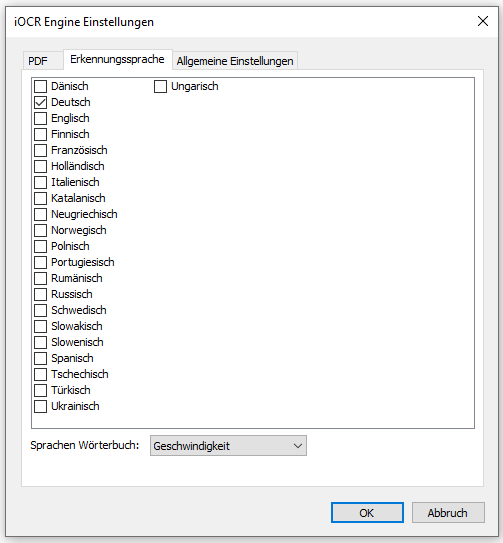
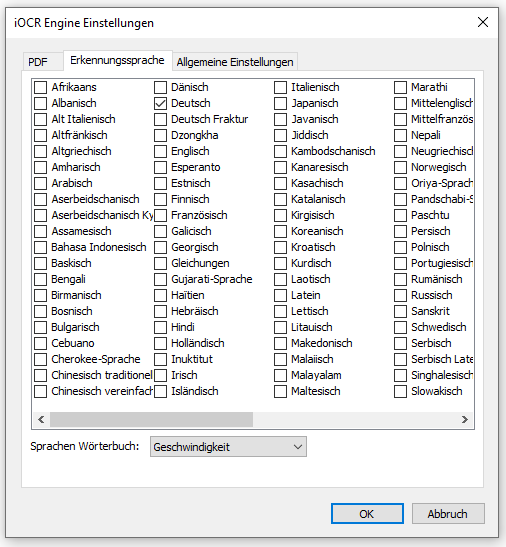
Download – iOCR (vsOCR) Setup – additional languages (ca. 1200MB) >>>

eDocPrintPro free, PDF/A & ZUGFeRD Version 5.3.4 available

Innovations Version 5.3.4:

  • The two paper formats that are often required in the CAD area – DIN A0 and DIN A1 have been added to the list of standard formats and are therefore available immediately after installation.

  • With the ESFX profile management, individually created paper formats are now correctly saved, restored when the profiles are loaded and are no longer lost.

Download – eDocPrintPro free 64bit Version

Download – eDocPrintPro 64bit PDF/A & ZUGFeRD

Download GhostScript 9.53.3 64bit Setup

Download – eDocPrintPro 32bit Version 4.0.2

Download – eDocPrintPro 4.0.2 32bit (ca. 66 MB) >>>
Download – eDocPrintPro PDF/A & ZUGFeRD 32bit (ca. 105 MB) >>>
Download – GhostScript 9.27 MSI Setup – 32bit (ca. 26MB) >>>

Webshop