PDFmdx version 3.7.4

New features PDFmdx Editor version 3.7.4:

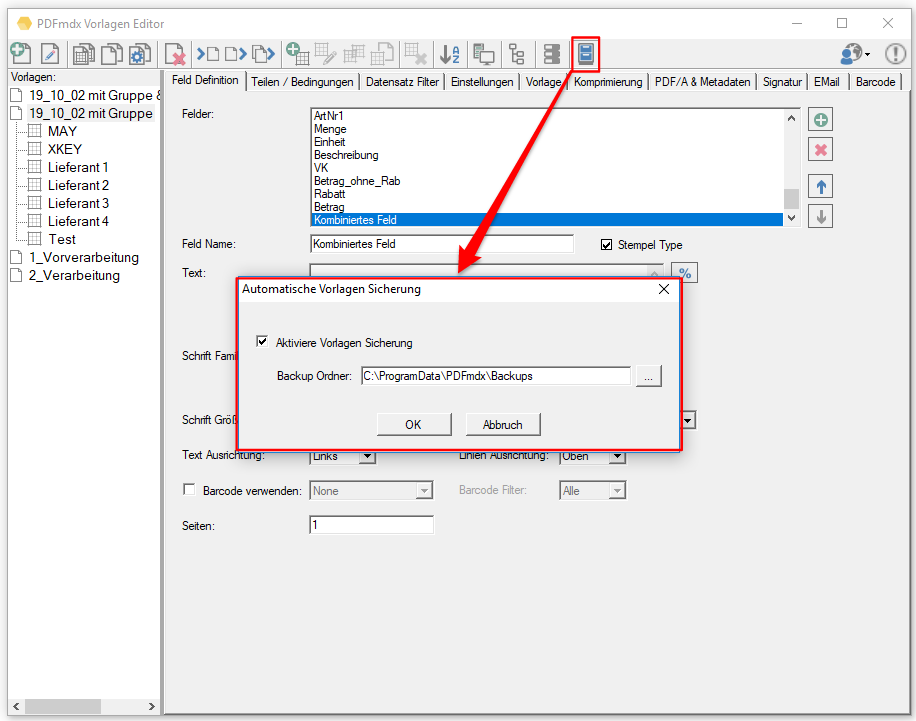
  • Automatic backup of templates at startup: Activate the function, path for the backups, backups are marked with date and time and replaced by rotation.
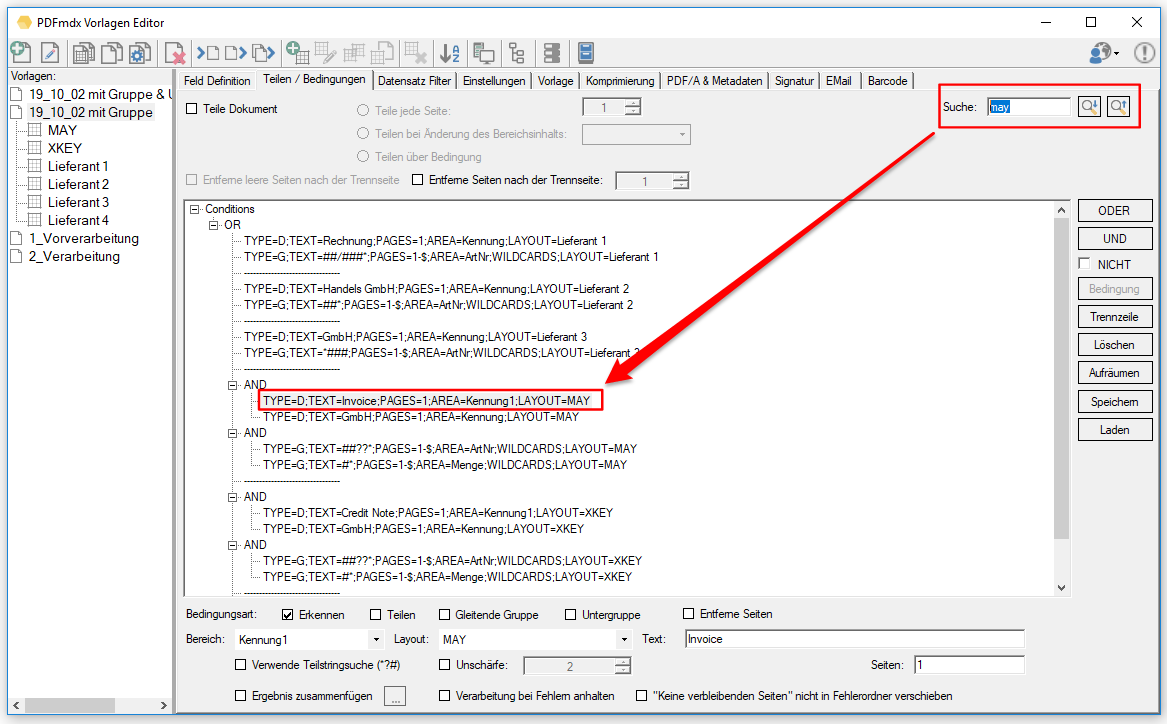
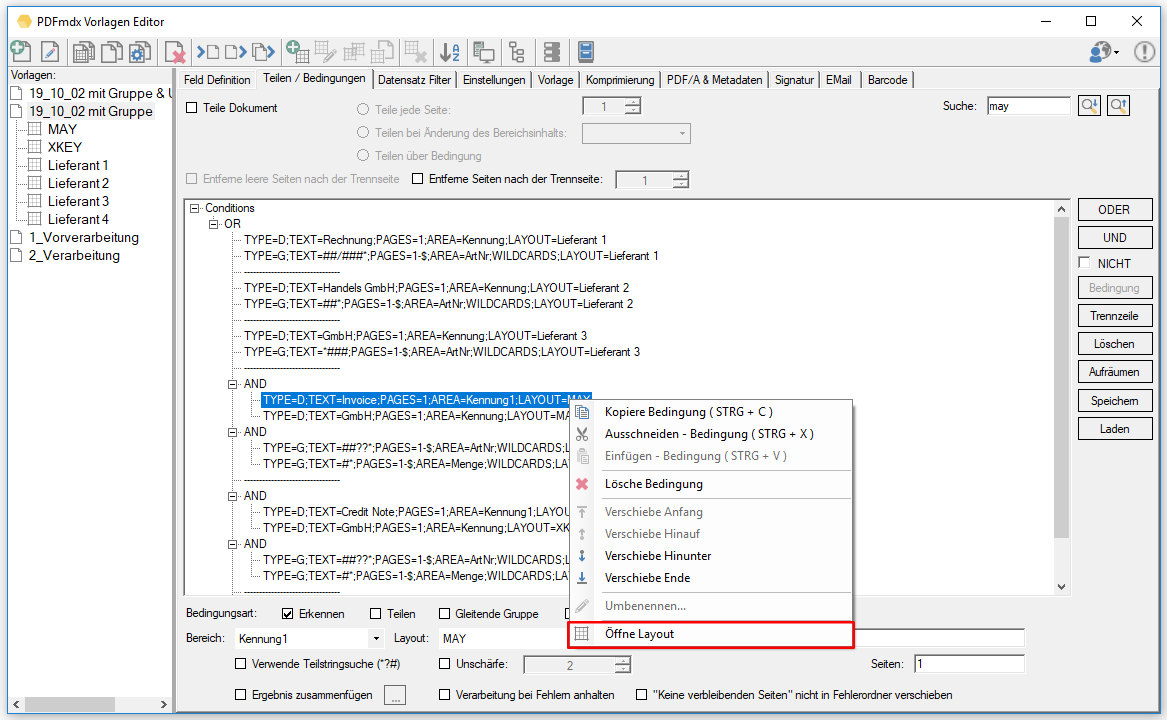
  • Search function for conditions: Forward/backward search, full-text search in the conditions. Using the context menu, the layout associated with the condition can be called up and opened directly.
 

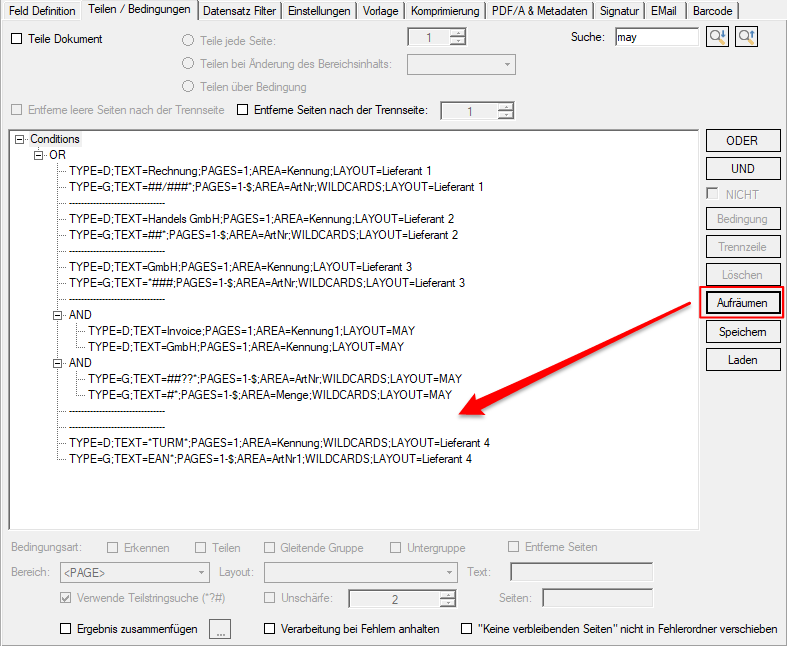
  • Comment / separator lines in the condition editor can be deleted or moved up/down.

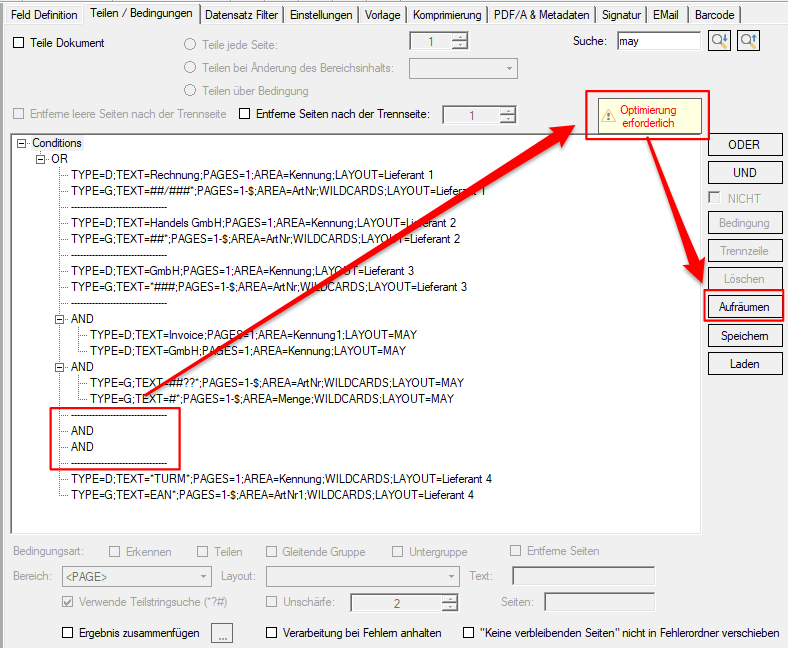
  • Warning for empty condition nodes: Empty condition nodes can lead to unpredictable results during processing. These are now recognized in the condition editor. A warning is displayed to perform a cleanup.
 

  • NOT for conditions: To be able to reverse the logic of a condition.

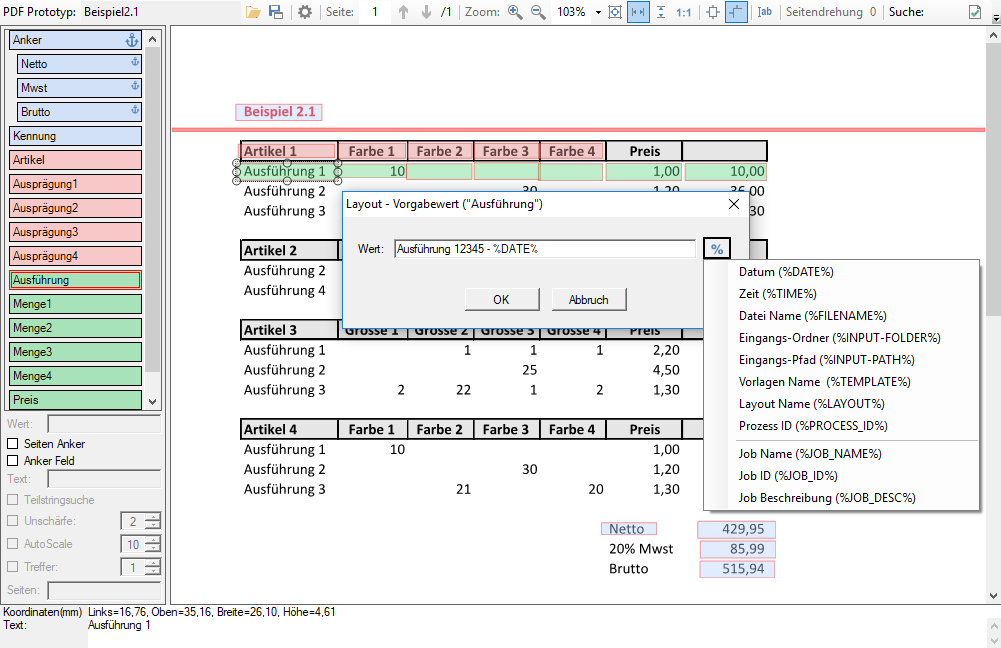
  • Extensible fields: For fields of a moving group, not every record may have the same number of rows, and therefore a field fixed in its vertical size may either capture too many or not all rows. With this option, the field can be defined vertically smaller and all subsequent lines to the next record in a field are recorded. The character inserted at the end of each merge line is configurable (space, semicolon, comma).

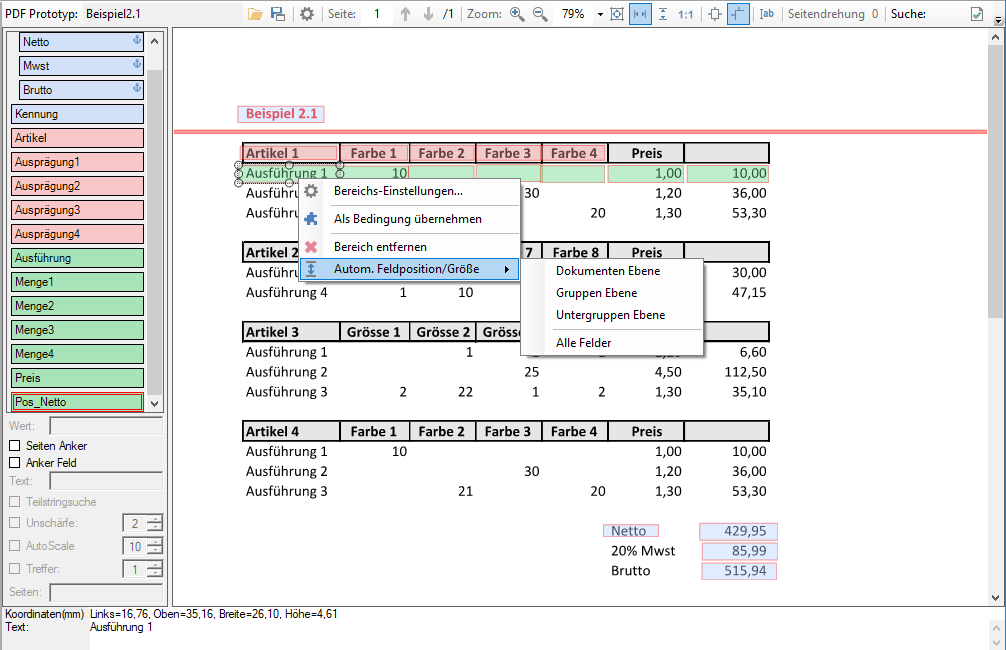
  • Align the field position and adjust the optimal size: For capturing records of a moving group / subgroup, it is important that the fields are all at a roughly similar vertical position and that the fields are vertically the correct size. The size is optimal if the field vertically just barely captures the text area to read the text, but should not be larger or smaller. It can sometimes not be easy to set the size manually with narrow lines. There is now an automatic function. This function automatically aligns the fields vertically and sets them to the optimal size.
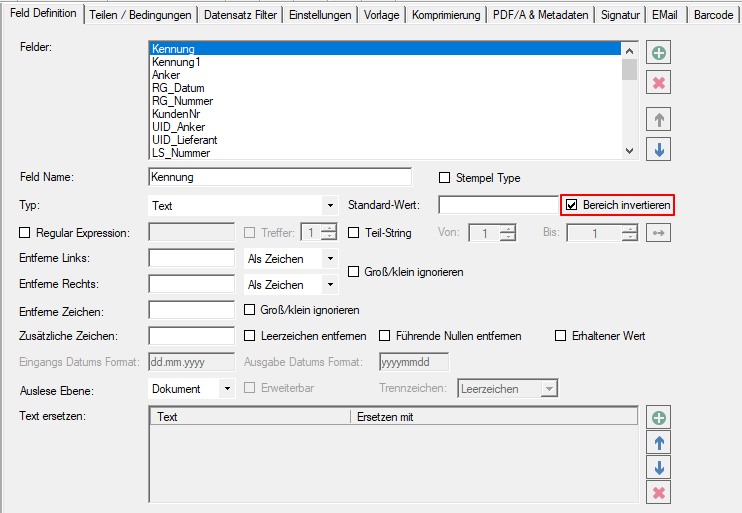
  • Invert area before OCR detection: OCR only works with dark text on a light background. For light writing on a dark background, the area must be inverted before the OCR recognition. There is now a special image processing function that can be activated for a field and executed before the integrated OCR recognition.
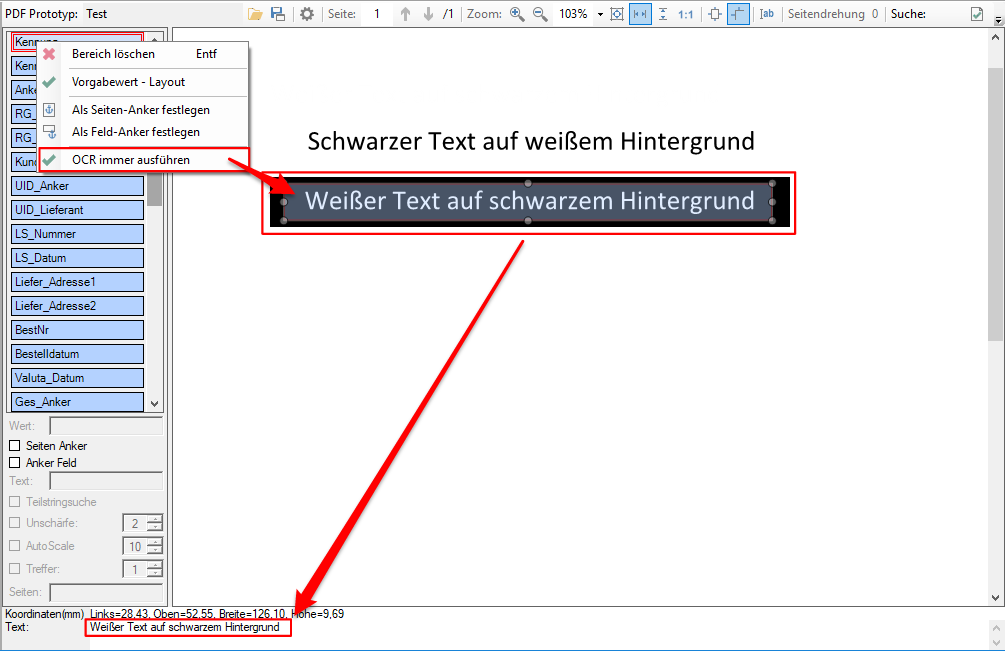
  • Always run OCR: Not always does a PDF have the correct text in the text layer. For example, if inverted areas with white text on a black background are present in the document. If “SmartOCR” processing is enabled, an area OCR will only be executed if there is no text in the area. It can now be determined for individual areas that despite existing text, the OCR is always executed, e.g. to perform an inversion of the area beforehand to get a usable result.
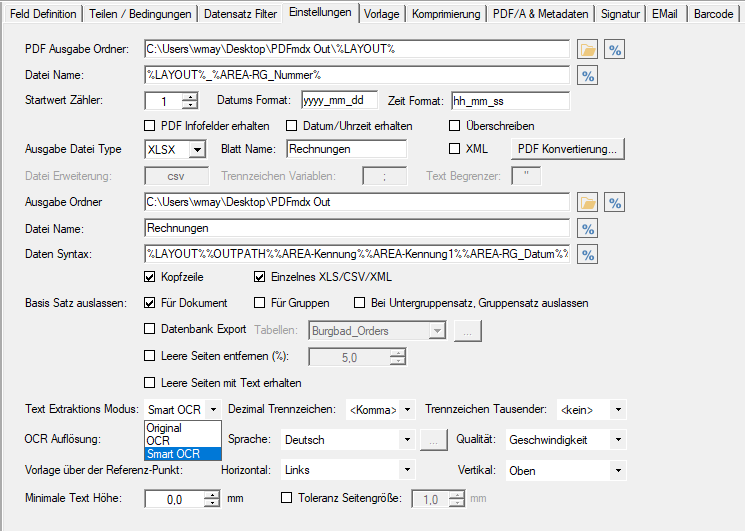
 

  • Compound fields: You can now also create fields that are composed of other fields and texts. These fields can be used for the output.
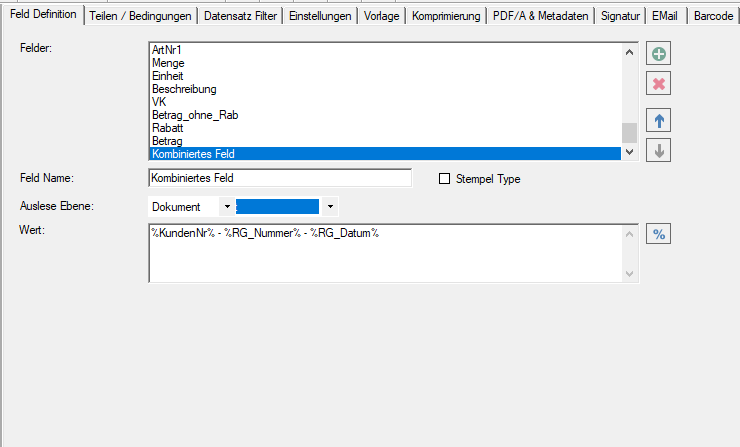
  • Default values for fields can be assigned based on the layout and not just globally.


  • Numeric fields can also accept negative values.
  • Create a template without the layouts contained in the template as a new template.
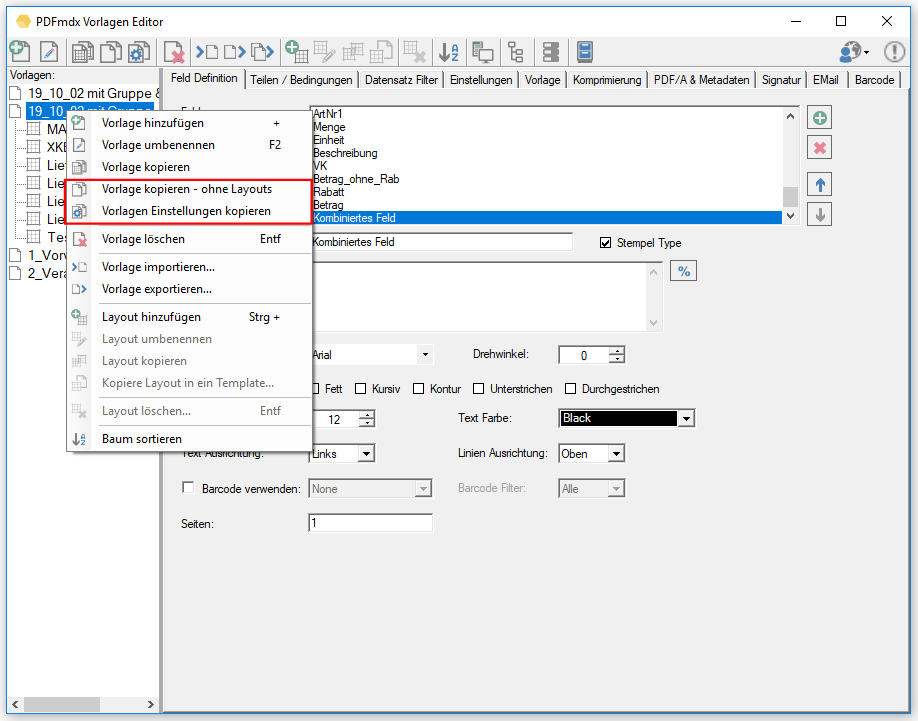
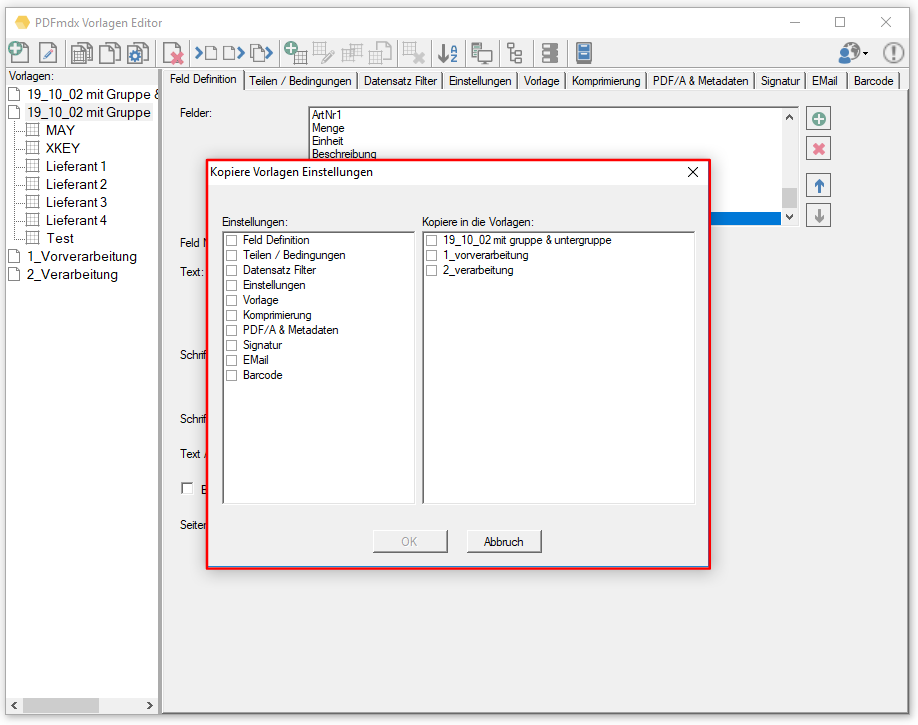
  • Transfer settings of a template to other templates: Selection of the settings tabs of the source template as well as selection of the target templates.
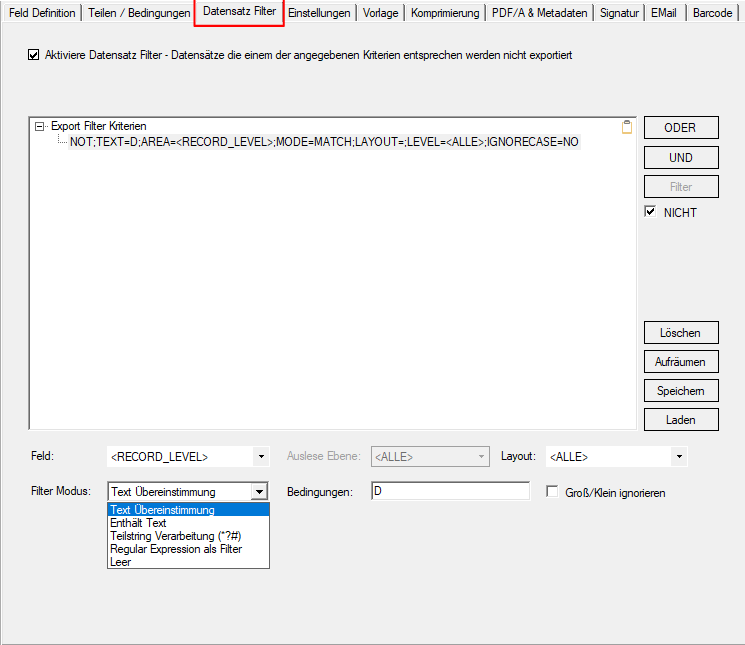
  • Export record filter: Conditions can be used to filter the data record export. Records that meet one of the defined conditions are filtered and not output. Filtered records are displayed in the test function marked “red”. Conditions can be constructed on the basis of text strings, substrings, regular expression or “empty” over fields, layouts and selection level (document, group, subgroup) as well as AND/OR or NOT relationships.
New features PDFmdx Processor version 3.7.4:

  • Call a command line application: After processing all documents from the input area of a job, a command line application can be called. For example, pdfFM to merge files from multiple folders with the same name into a single PDF. If processing takes place via the PDFmdx Windows service, the command line application must not display a dialog and must be executed “silent”.

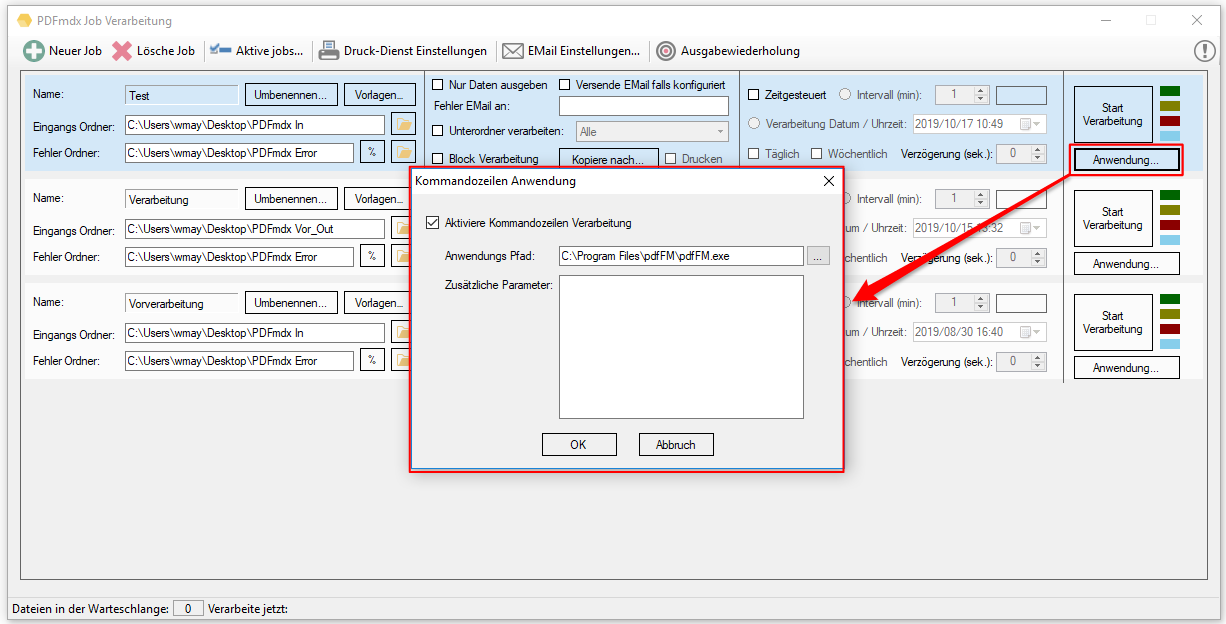
 

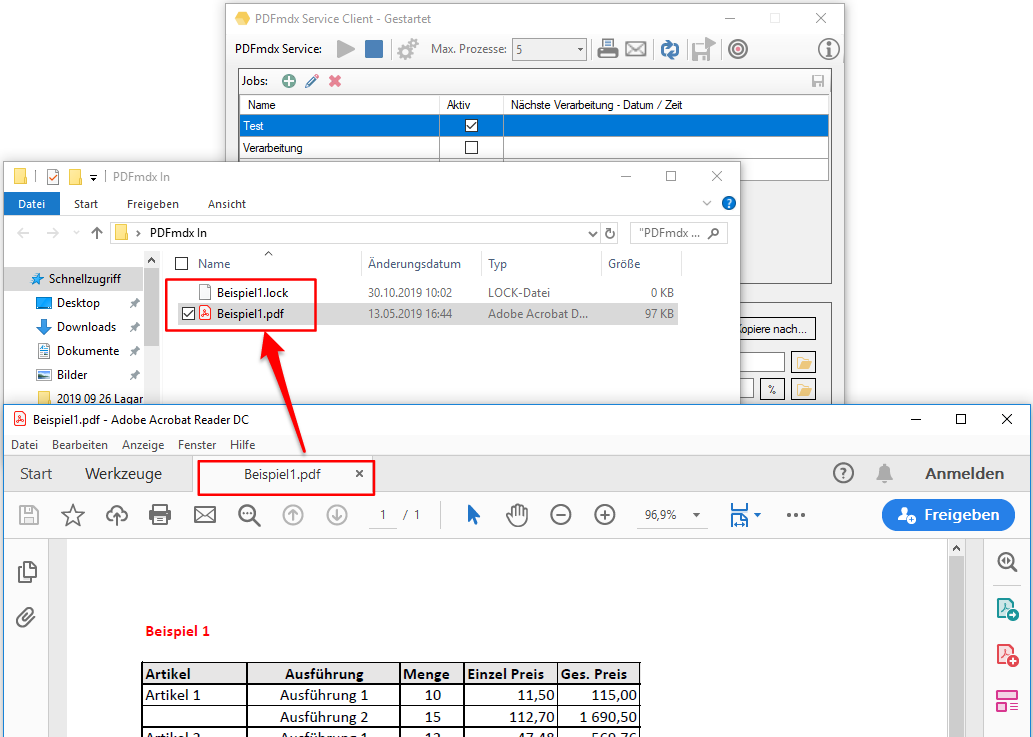
  • Locked files are detected and not processed: If a file to be processed is locked, it can not be processed or moved to an error folder. Such files are marked with a *.lock file and are not further processed. To process such a file later, only the *.lock file has to be deleted.
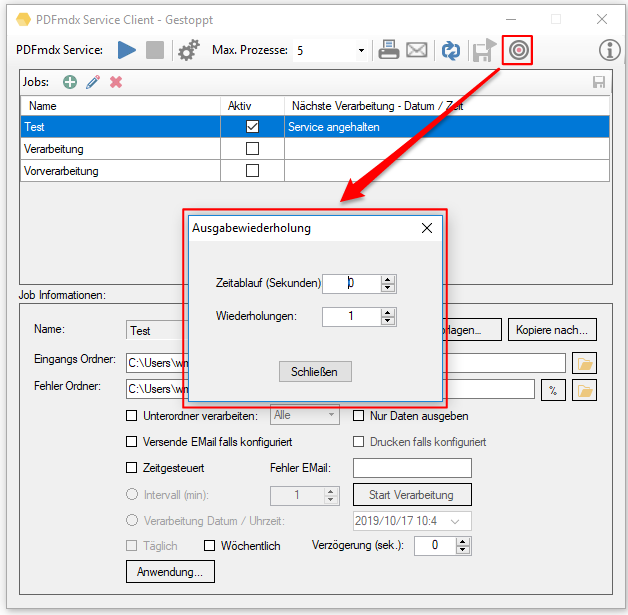
  • Output – repetition: If a device is not immediately available at the output (share / network drive) or responds too slowly, then the waiting time and the number of repetitions can now be set before the processing recognizes this fact as an error and interrupts the processing.
Download – PDFmdx Template Editor & Processor >>>

AutoOCR-CS-FM – Folder monitoring for AutoOCR via web service

AutoOCR-CS-FM is a folder monitoring add-on application available free of charge for the AutoOCR server. AutoOCR-CS-FM enables the conversion of image PDF, TIF/TIFF, JPG/JPEG, PNG, BMP, GIF files into searchable PDF or PDF/A files. Input folders (several possible) or entire folder structures are monitored, newly added files are recognized, processed and stored in a configured output folder. The communication with the AutoOCR takes place via http/https via the AutoOCR web service interface. The AutoOCR server can be addressed locally, in the same network or via an Internet connection.

Features AutoOCR-CS-FM:

  • Free Folder-Monitoring application for AutoOCR to generate searchable PDF(/A) via OCR from image PDF, TIF/TIFF, JPG/JPEG, PNG, BMP, GIF.
  • MS-Windows service.
  • Processing takes place via SOAP web service on a (remote) AutoOCR server via http/https.
  • Monitors entire folders / folder structures (several possible), newly added files are recognized, processed and stored in the output folder as searchable PDF or PDF/A.
  • Control of the processing parameters by selecting an OCR profile stored on the AutoOCR server.
  • Parallel multiple upload/download to the AutoOCR server configurable for optimal throughput.


Download – AutoOCR-CS-FM – folder monitoring for AutoOCR via web service >>>

AutoOCR-CL – OCR command line application, generates searchable PDF or PDF/A

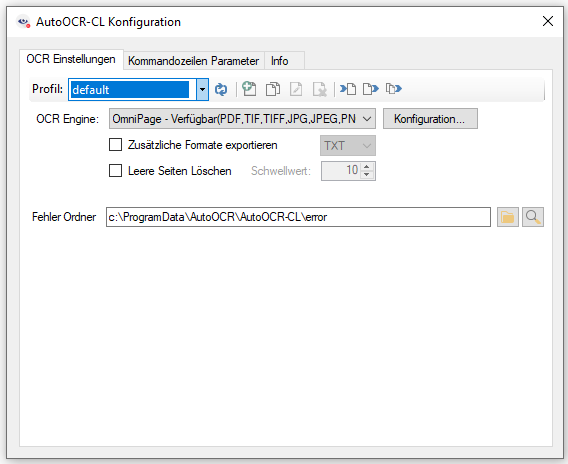
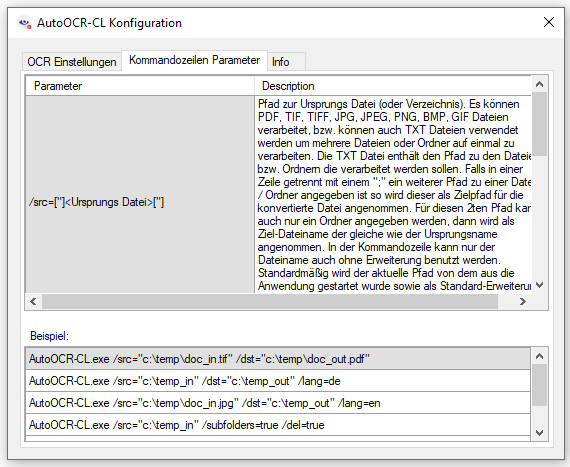
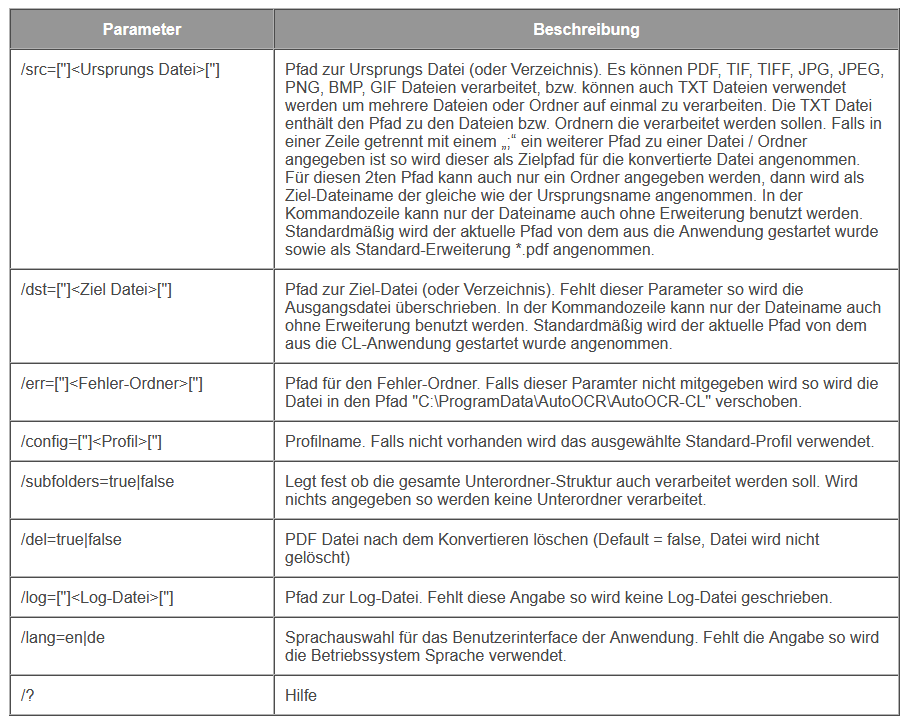
AutoOCR is now also available as a CL command line version. This can be used to convert PDF image and other image files (TIFF, JPEG, PNG, BMP, GIF) or entire folders and folder structures into searchable PDF via a command line call. In addition, there is the option to create PDF/A files via the integration of our PDF2PDFA converter component as well as to generate the smalles possible and highly compressed PDF via the PDFCompressor component. The PDF/A and PDFCompressor functions can be additionally activated via license options. In addition to the standard iOCR engine, the OmniPage OCR Engine is optionally available on the client operating systems Windows 7/10, which is already included in the setup.

Features AutoOCR-CL:

  • Command line OCR application
  • Converts PDF image, TIFF, JPEG, PNG, BMP, GIF files into searchable PDF(/A)
  • Processes – single files, folders, folder structures or file/folder lists from TXT files
  • User interface to create and manage OCR processing / settings profiles
  • Standard – iOCR engine or optional on Client operating systems – OmniPage OCR.
  • Optional – PDF2PDFA converter to create PDF/A-1, 2, 3 files
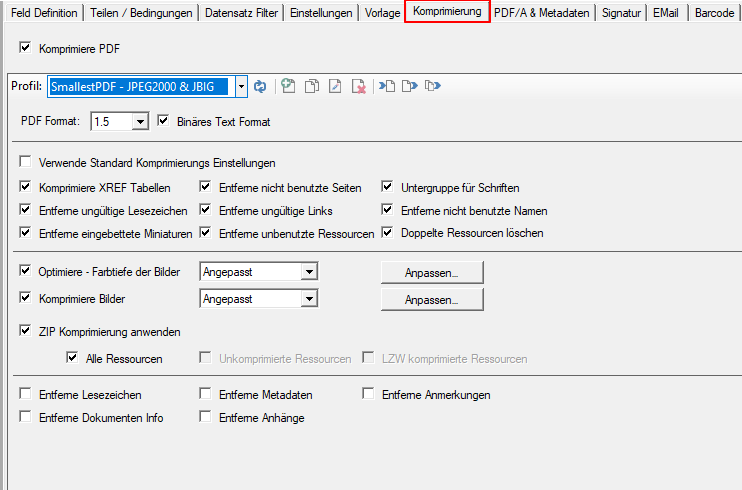
  • Optional – PDFCompressor to create small and highly compressed PDF


Download – AutoOCR-CL –  command line application for AutoOCR >>>
Download – Readme / Help – AutoOCR-CL >>>

eDocPrintPro plugin – PDFSign version 3.1.3

New features of version 3.1.3:

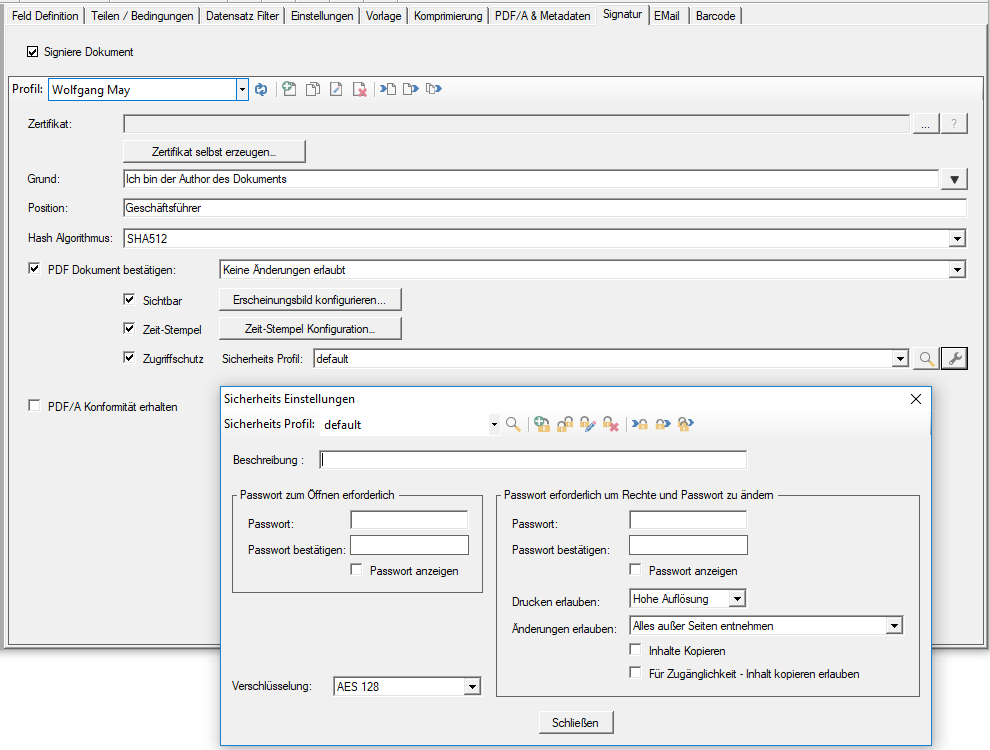
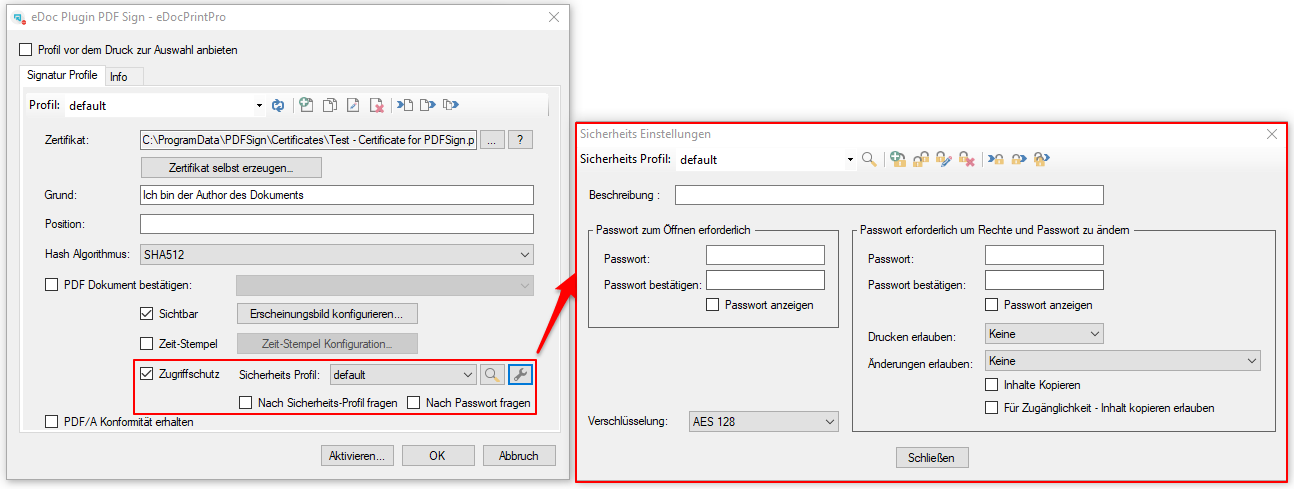
Often you do not only want to use certain PDF security settings and passwords that are always the same for the protection of PDF documents, but you also want to use different default settings per recipient. In order to implement this as simple and uncomplicated as possible, the PDF security settings and passwords are now managed in separate profiles. A profile can be searched for and selected not only by name but also by a description (e.g. customer number, company, person, email, etc.) over both fields using type-ahead substring search during runtime.

Functions of PDF Security profiles:

  • Manage the profiles by name and description
  • Profile search and selection via both fields – name and description – using type-ahead substring search
  • Profile – New, Copy, Edit, Delete, Import, Export, Export All
  • Checkbox selection – use default profile or profile query at runtime
  • Checkbox selection – “Ask for password” – The default password is displayed at runtime and can be changed.


Download – eDocPrintPro PDFSign Plugin >>>

FileConverterPro 1.0.91 – New Version

Innovations FCpro Version 1.0.91:

  • Updated and corrected components for OCR, PDF to PDF/A, HTML to PDF and Office to PDF
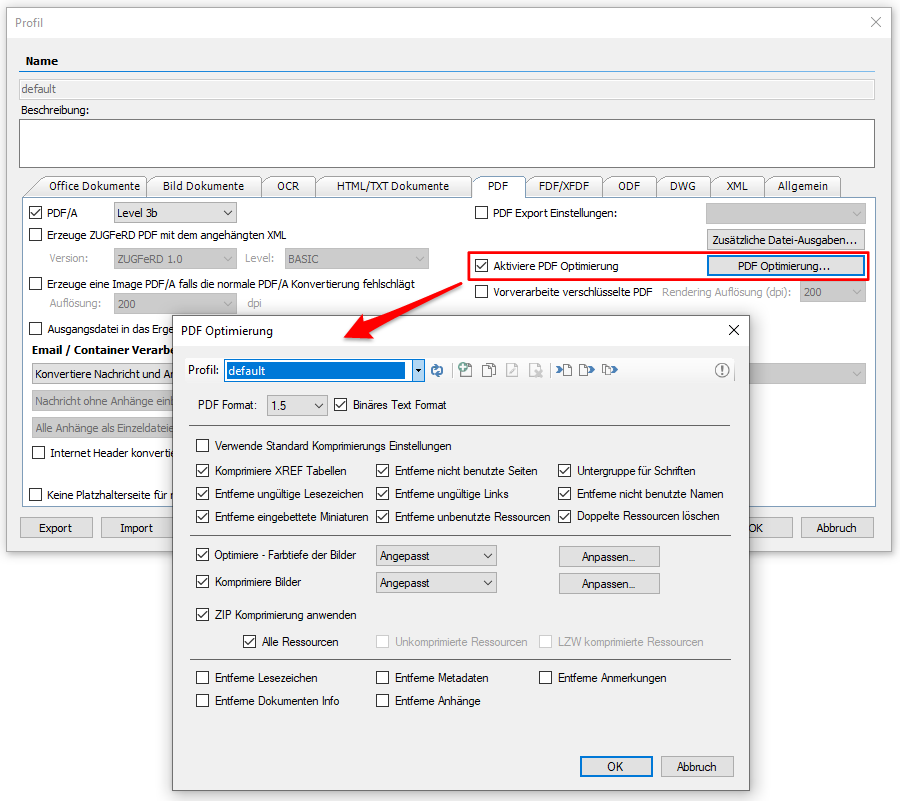
  • PDFCompressor functionality enables the PDF optimization and thus the generation of smallest, highly compressed PDF files. (Additional license required)

  • Using the GenOCR component as a common basis with AutoOCR.
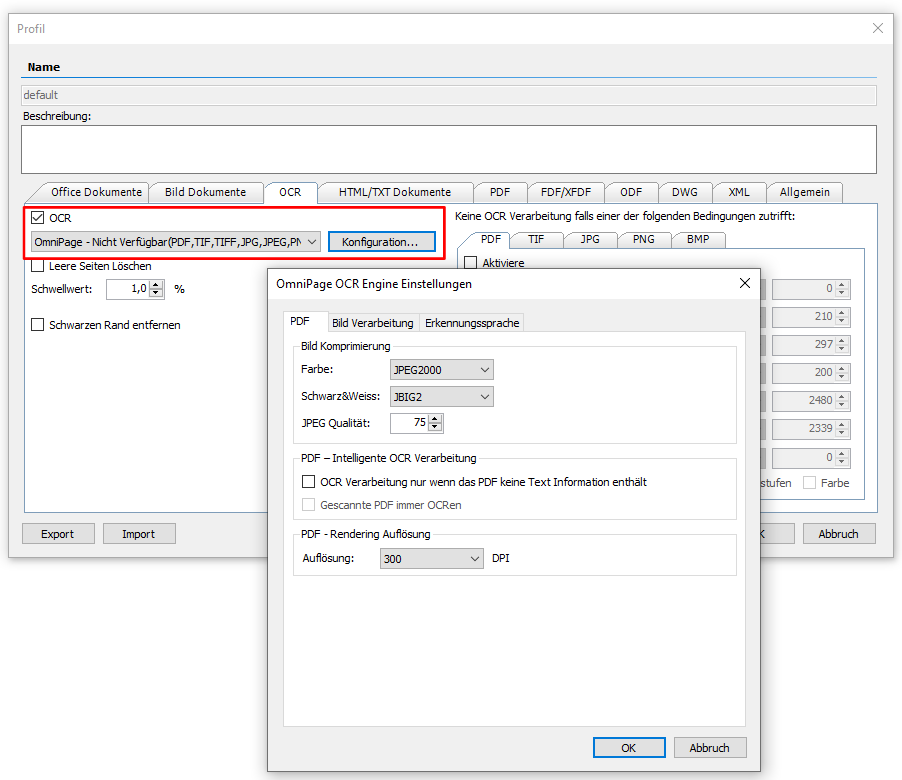
  • OmniPage a very fast and accurate OCR engine: OmniPage can be licensed and unlocked in addition to the existing Tesseract iOCR. The additional OmniPage OCR setup must be downloaded and installed. Then the OmniPage OCR engine will be displayed as “Available” and can be used. The OmniPage standard license allows use on 64 bit Microsoft client operating systems – Windows 7/10 up to max. 25,000 pages per month.

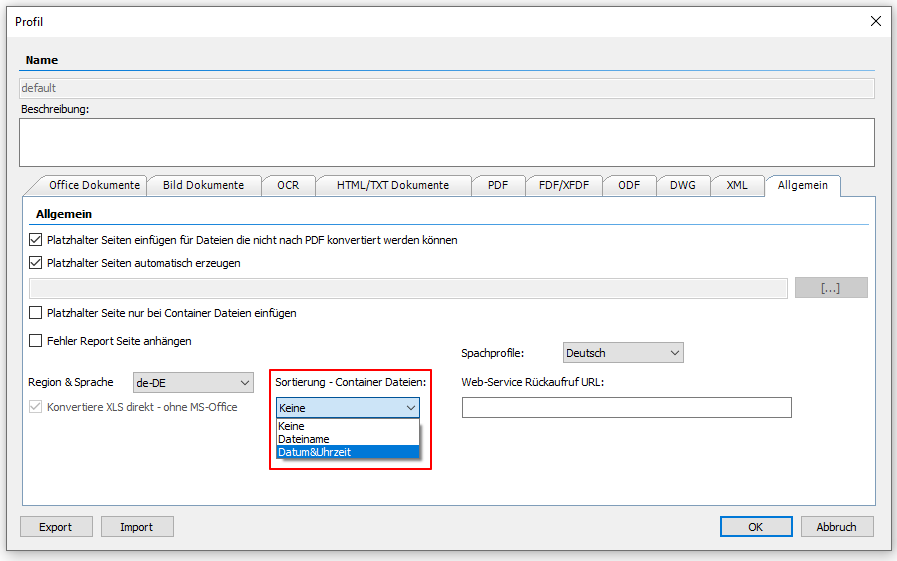
  • Order of email attachments in the total PDF document can be specified via a parameter. “None / Filename / Date & Time” are available. This determines whether the order in the PDF document is controlled by the order in the message or by the file name or the creation date and time of the attachments.

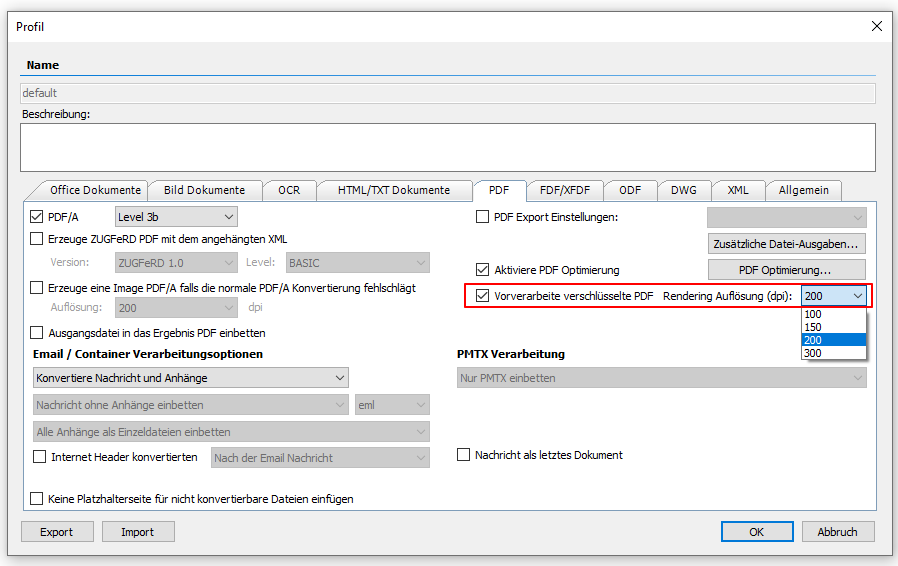
  • Encrypted PDF can be processed via “Rendering”. Normally it is not possible to process an encrypted PDF without knowing the administrator password. Well protected, e.g. all functions except “Display” will be blocked. Via the display function it is possible to create a “rendering” of the PDF file. The PDF is converted to a PDF image file with underlying text, but then no longer has encryption and processing restrictions. However, PDF files that have password protection for viewing / opening can not be processed.

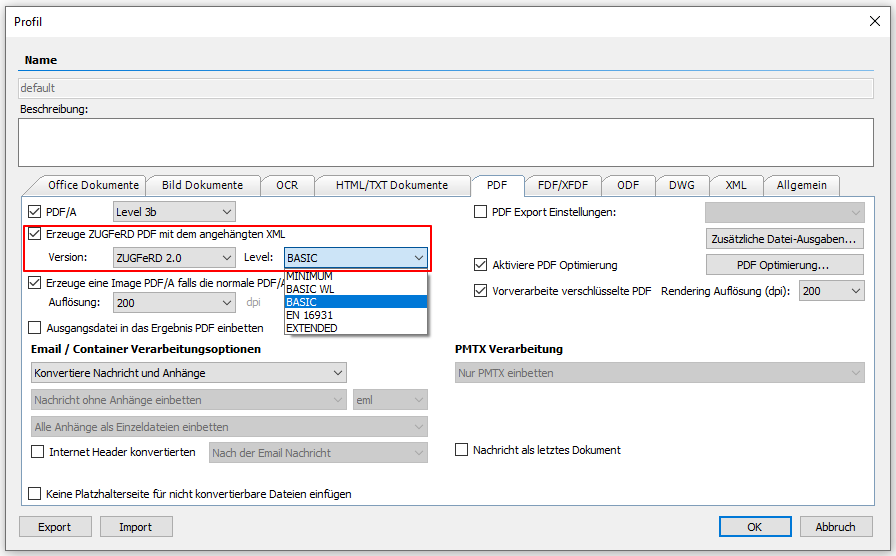
  • Generating ZUGFeRD 2.0 E-Invoice PDF with selection of the ZUGFeRD profile (MINIMUM, BASIC WL, BASIC, EN 16931, EXTENDED).

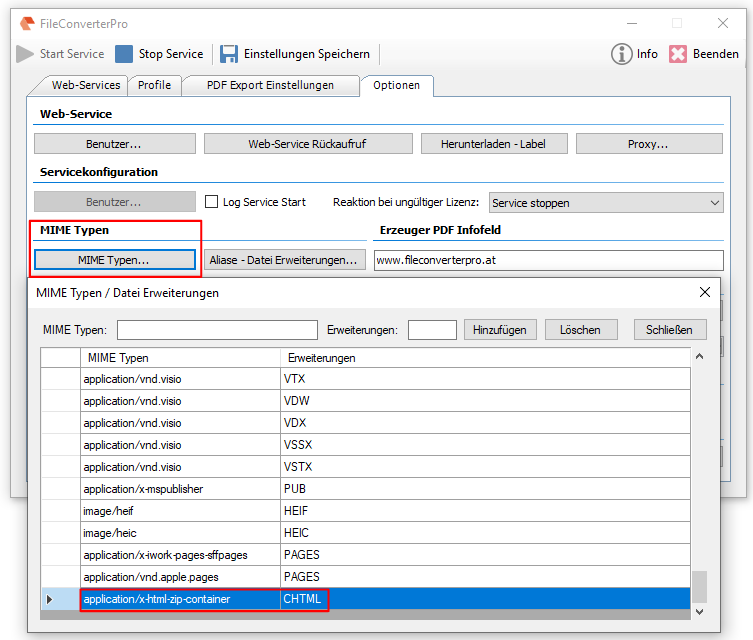
  • CHTML = Compressed HTML (ZIP file): Convert HTML to PDF incl. the locally referenced files / components with the help of a ZIP file with the extension CHTML = Compressed HTML. Several HTML files in the CHTML are merged into a PDF total file. The names of the HTML files contained in the CHTML determine the order in the result document. All external files referenced in the HTML must be included in the ZIP file.

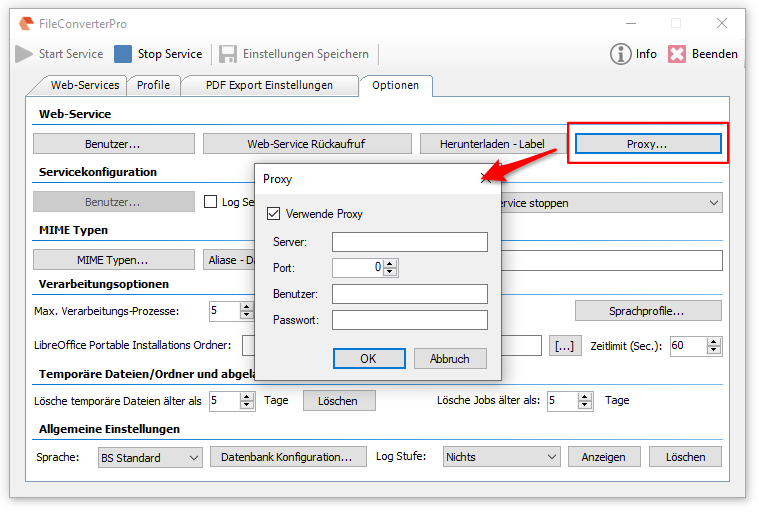
  • Proxy Support – When converting HTML documents or email messages (MSG, EML), it may be necessary for e.g. images from the Internet to be reloaded because they are externally referenced and not included in the message. Now a proxy can be configured and used for these internet accesses.

  • Regular cleanup of temporary folders: Corrections have been made to periodically clean up the temporary folders used for processing to ensure that data does not accumulate over the longer term.
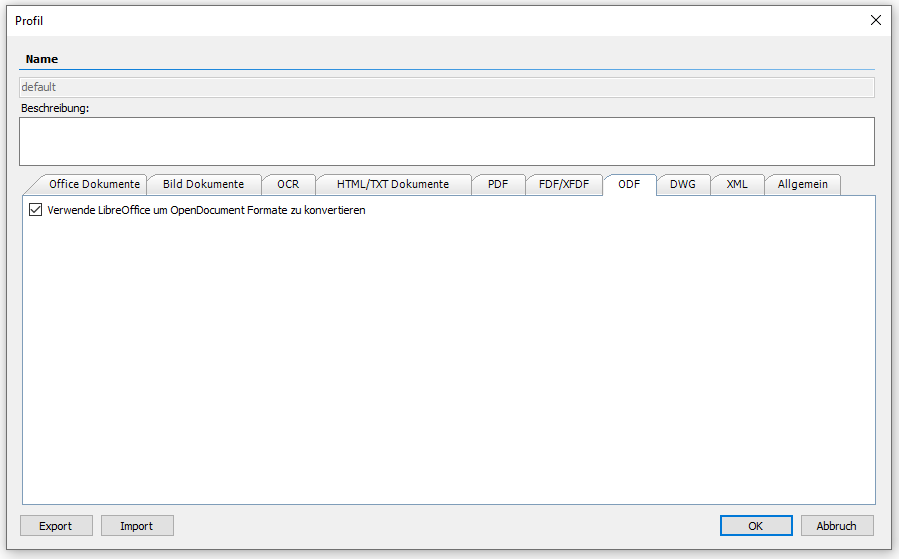
  • PDF conversion of „Apple .Pages“ documents via LibreOffice.


  • ZIP files created on Apple iOS are converted correctly. The “__MACOSX” folder and the “.DS_Store” file are ignored and not converted.
  • Hyphenation: DOCX – direct conversion. If a hyphenation dictionary is missing or unassigned, the document can still be converted to PDF.
  • REST web-service, job-label for placeholder pages: If a job can not be converted, either an error is reported or a placeholder page is returned. There is now an additional indicator “placeholder = true/false” for the job query via the REST API. With this, the job status “Successful” can be used to detect whether a placeholder page or the converted document has been returned.

Download – OmniPage OCR engine as option for FCpro (ca. 235MB) >>>
Download – FileConverterPro (FCpro) ~600MB >>>

FileConverterPro Explorer Extension (FCpro EE) – Product Video

The FileConverterPro (FCpro) provides a central service for converting many document formats to PDF or PDF/A via its web service interface. The FCpro Explorer Extension (FCpro EE) is a free Windows client application available for the FCpro converter. The FCPro EE integrates MS-Windows clients, via the context menu in Windows Explorer, with the FCPro PDF conversion service and enables easy and direct PDF(/A) conversion for a variety of documents and container formats.

Download – FileConverterPro Explorer Extension (FCpro EE) >>>
Download – FileConverterPro (FCpro) ~150MB >>>

eDocPrintPro Plugin – PDFPrint – Product Video

With the eDocPrintPro PDFPrint Plugin, the PDF documents generated by the printer can be automatically printed on a physical printer (local or network).

The following video shows how to install and configure the plugin:

Download – eDocPrintPro – PDFPrint Plugin >>>

PDFScanEdit – Barcode Processing – Product Video

PDFScanEdit makes it possible to interactively recognize and process barcodes on PDF and scans.

  • Split by barcode
  • Use barcode value as file name
  • Delete pages with barcodes
  • Filter barcodes

The following video shows how to do it:

PDFScanEdit Highlights:

  • Provides the most important and commonly used functions for editing PDF scanned documents.
  • Page-oriented functions for comprehensive editing of PDFs and scans (black & white, grayscale, color).
  • Process documents from inbox folders – Display as document list, e.g. for multifunction devices, network scanners.
  • Integrated scanning function to capture documents via a locally connected scanner. Scan settings are selectable via presettable profiles.
  • Page preview – Zoom, Scroll, Page selection, Rotate – as well as thumbnail miniatures of all pages.
  • Quick change of document names with automatic selection of the next file incl. Area OCR.
  • Delete areas on a page / crop to area
  • Page-oriented document editing – rotate pages left/right, delete pages, drag and drop pages in the thumbnail view.
  • Split document – at marked page, after x pages, after barcode
  • Merge documents – define sequence, automatic deletion of individual files.
  • Export – to an output folder, send as e-mail attachment or via export plugin.
  • Generates searchable PDF-OCR documents including intelligent OCR processing. Only image pages are OCR processed.

 Export Plugin Interface:

  • Installable plugins for profiling and collecting metadata.
  • One or more plugins can be installed and selected.
  • Simultaneous presentation of the profile mask and the document preview.
  • Background / batch processing, e.g. for PDF-OCR conversion and upload.
  • Automatically load the next document from the list.

DownloadPDFScanEdit Scan, process Image/PDF documents >>>

Result code – CL, CS-CL command line applications

With the current versions of our command line applications (CL, CS-CL), a result code is now returned which can be evaluated. 0 = Successful, -1 = Error. The system variable %ERRORLEVEL% is also assigned the result code.

PDFmdx – Two-level reading of position data – Product video

In some industries, there are documents where position data has another level. There are documents with 2-stage position data, e.g. in the case of textiles or clothing where an article (number, description) can also have a “sub-level” with sizes or color specifications. The article itself is just listed once and in the level below there are then the quantities/prices of the individual characteristics.

PDFmdx is also able to recognize and read two-stage position data, the following video shows how to do it:

Download – PDFmdx Template Editor & Processor >>>

Webshop